Open your published WordPress page in a private browser window first. If you can read it without signing in, check that its main answers and business details appear as visible text.
Then focus on these fixes:
- Use clear headings and put the main answer first.
- Make prices, requirements, and steps easy to find.
- Write link text that describes the page it opens.
- Check existing schema before adding JSON-LD, and make sure it matches your page.
- Test the live page and track your changes.
You can make these edits without replacing your SEO plugin. LovedByAI scans pages for crawl, structure, and schema issues to help you plan follow-up checks. These changes can help machines read your content, but there’s no guarantee of AI citations.
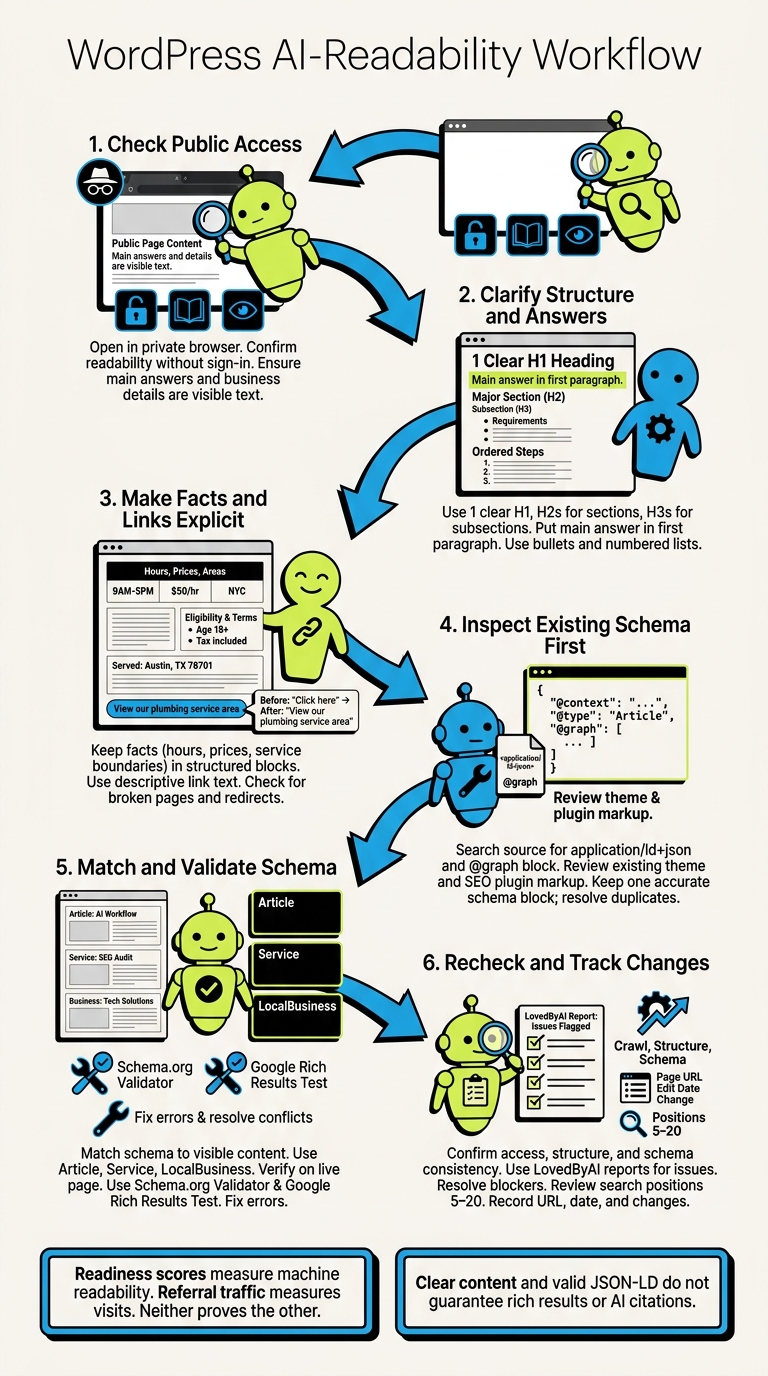
WordPress AI-Readability Workflow
Write Clear WordPress Headings and Summaries
Once your page is publicly reachable, make it easy to scan.
Use 1 Clear H1 and Logical H2–H3 Headings
Check your rendered page and template to see whether the title already appears as an H1. If it does, don't add another. In the WordPress block editor, type /heading or convert a paragraph block to a Heading block.
Use H2 for major sections and H3 for subsections beneath an H2. Choose heading levels based on structure, not appearance. Check Document Overview, then review the front end for headings added by your template.
Hypothetical heading edit: Replace Our Services with Residential Plumbing Services in Austin. Under that H1, use H2 headings such as Drain Cleaning and Request a Plumbing Estimate. Place H3 headings such as Common Drain Problems and What the Service Includes beneath Drain Cleaning.
Next, write an opening summary that answers the main question right away.
Start With the Direct Answer
Put the main answer in your first paragraph. Skip the broad promotional lead, then add explanation, qualifications, and the next step. Define technical terms when you first use them. For example, a tankless water heater heats water on demand rather than storing it in a tank.
Hypothetical before: For many years, our team has been proud to support homeowners throughout Central Texas. We understand that plumbing concerns can happen at any time, and our experienced professionals are ready to help.
Hypothetical after: We provide residential plumbing repairs, drain cleaning, and water-heater service in Austin and nearby communities. Emergency availability and service-area limits are listed below. Homeowners can request an estimate online or call (512) 555-0147 to schedule service.
Format the supporting details so readers can find what they need. You can also add JSON-LD to WordPress to help AI agents categorize these details.
Present Prices, Requirements, and Steps Clearly
Use bullets for requirements and numbered lists for steps that must happen in order. Keep the service area, eligibility, exclusions, and pricing terms beside the offer.
Label estimates separately from fixed prices, and state whether taxes or fees apply. Format U.S. dollar amounts consistently, including cents when relevant. Use month-day-year dates and U.S. customary units, adding metric equivalents only when they help clarify a measurement.
Optimize your WordPress site for AI search
Find out what ChatGPT, Gemini, and Perplexity can and can't read on your site, and exactly what to fix.
Clarify WordPress Links and Page Facts
Use Descriptive Link Text
Tell readers what the linked page covers. Google recommends concise, relevant anchor text that describes the destination. Choose the page that answers your reader’s likely next question rather than your homepage. Avoid adding keywords that the destination doesn’t support.[4]
Original anchor Improved anchor Information conveyed Click here View our plumbing service area Opens the page listing locations served Learn more Compare our residential and commercial plans Opens a plan-comparison page Download Download the contractor licensing checklist Downloads a named checklist
In the WordPress block editor, select the words you want to link, choose the Link icon, and enter or paste the destination URL. To edit a link, select the linked text and open the link control. Replace the URL or choose the correct page from the search results, then save or update the post.[5] Check the link on the published page, not just in the editor.
Keep Key Facts in Visible Text
Clear links need clear facts on the page. Visible body text helps AI systems identify key details. Keep hours, prices, service boundaries, and requirements in Paragraph, List, or Table blocks. Links can provide more detail. Use images, tooltips, and downloads only for extras.
Name the cities, counties, or ZIP codes you serve instead of relying on a regional nickname. Place restrictions beside the offer they apply to, and explain the key requirements before linking to the full policy. Add a visible Last updated date only when you revise the facts.
After saving, test each link in a private browser window. Check for broken pages, redirects, login walls, and missing downloads. Compare the destination’s heading and content with the link text. A service-area link should lead to service boundaries rather than a generic contact page. For local companies, using LocalBusiness schema plugins can help automate these location details.
On mobile, make sure any hover-only details also appear in the body copy. Before you add schema markup, check that the link text matches its destination and that the page’s key facts remain visible and readable.
Add JSON-LD Without WordPress Plugin Conflicts
JSON-LD is machine-readable structured data for articles, services, products, and businesses. Once your page reads clearly, use schema to label its content accurately for crawlers.[3][1]
Match Schema to the Page Content
Choose the schema type that fits your page: Article or BlogPosting for editorial content, Service for services, Product for products, and LocalBusiness or a subtype such as Dentist for local businesses.
For LocalBusiness, check the name, address, phone number, and hours. Your schema should match the published page exactly. Leave out unsupported claims and invented reviews.[3]
Check existing schema or compare WordPress schema plugins before adding markup
Before adding anything, open the live page source and search for application/ld+json. Review what your theme and SEO plugin already output, including any @graph block.
Keep one accurate schema block per entity. Remove duplicates that describe the same page differently, and use a developer-managed wp_head insertion for page-specific JSON-LD.[3]
Validate a Minimal Article JSON-LD Example
Use this minimal Article template as a starting point. Replace every placeholder with accurate information before publishing, including the real author, image, and publication or modification dates when available.[3]
<script type="application/ld+json">
{
  "@context": "https://schema.org",
  "@type": "Article",
  "headline": "How to Make WordPress Content Easier for AI to Read",
  "image": "REPLACE_WITH_IMAGE_URL",
  "author": {
    "@type": "Person",
    "name": "REPLACE_WITH_AUTHOR_NAME"
  },
  "publisher": {
    "@type": "Organization",
    "name": "REPLACE_WITH_PUBLISHER_NAME",
    "logo": {
      "@type": "ImageObject",
      "url": "REPLACE_WITH_LOGO_URL"
    }
  },
  "datePublished": "REPLACE_WITH_DATE_PUBLISHED",
  "dateModified": "REPLACE_WITH_DATE_MODIFIED"
}
</script>
After publishing, verify the script on the live page. Test the URL with the Schema.org Validator to check syntax and vocabulary. Then use Google’s Rich Results Test to check supported search features.
Fix errors, review applicable warnings, and resolve conflicting entities. Add suggested properties only when you have accurate information to support them. Using JSON-LD or passing validation does not guarantee rich results or AI citations.[3][1]
Prioritize Your WordPress AI-Readability Fixes
After fixing structure and markup, choose which pages to review for AI search first. Start with pages where crawl access, page structure, hidden facts, or inconsistent schema could prevent machine parsing. Close structural gaps first, then refine headings, links, and markup.
Check the Live Page Before Publishing
Preview your page before publishing. Once it’s live, confirm these checks:
- [ ] The page is accessible and readable without editor-only content.
- [ ] Its structure matches the outline, and key facts are visible in HTML.
- [ ] Any JSON-LD matches the published page exactly, including business details.
Use LovedByAI Reports for Follow-Up Reviews
Run a LovedByAI readiness scan to flag crawl, structure, or schema problems. Then check each issue on the live page. Once you’ve resolved access blockers, review pages ranking around positions 5–20 in standard search first.
Readiness scores measure machine readability. Referral traffic measures visits. Neither proves the other.
Compare later reports with your baseline without assuming a single edit caused a change. Keep a change log that records each page URL, edit date, and specific change.
FAQs
Can AI read content in WordPress tabs and accordions?
AI systems can struggle to read content hidden in tabs and accordions, especially when JavaScript renders the text. They may have trouble matching questions to answers or extracting content with the right context [1][2].
To help AI read your content, avoid generic accordion plugins that depend on JavaScript. Use native HTML5 <details> and <summary> tags instead. These let you create toggles with structured question-and-answer pairs [1].
How do I check whether my site blocks AI crawlers?
Check your robots.txt file for rules that block AI user agents such as GPTBot or Anthropic-AI. Check your Cloudflare settings, too. They may also block AI agents.
Next, disable JavaScript in your browser and reload the page. If the main text disappears, client-side rendering may prevent AI bots from reading it. Use the LovedByAI GEO Checker for a full diagnostic scan of crawl accessibility and AI-specific signals.
How often should I review my pages for AI readability?
Focus on your top 10 to 20 traffic-driving pages. Update statistics, examples, and recommendations when they need it, rather than sticking to a fixed schedule. AI models may give less priority to pages with outdated information or old publication dates.
Whenever you add structured data or schema, submit your updated XML sitemaps to help search engines process the changes. This typically takes a few days to a few weeks.