Schema.org markup gives AI systems a structured way to read your business and product details. Start by checking what your WordPress site already outputs, then add JSON-LD that matches your visible pages. There’s no guarantee of AI mentions, rankings, or citations.
Focus on the records your site needs:
-
Organizationconnects your business name, website, and official profiles. -
LocalBusinessdescribes your location, hours, phone number, and service areas. -
Productdescribes individual items, including price and stock status.
Use stable IDs, remove conflicting duplicates, and test your live pages with Google’s Rich Results Test and the Schema.org Validator. Update the markup when your business details change.
LovedByAI helps businesses understand their visibility in AI answers.
How Do Organization and LocalBusiness Schema Describe Your Business?
Organization: Link Your Business to Its Website
Use Organization to connect Article and Organization schema so AI can link your brand with your website and official profiles. Place the main record on your homepage, and use a stable @id so every reference points to the same business. Include only official profiles in sameAs. [4]
Example JSON-LD for a homepage
Organizationrecord:Replace the sample URLs with your own before publishing.
<script type="application/ld+json">
{
  "@context": "https://schema.org",
  "@type": "Organization",
  "@id": "https://cedarbendrepair.example/#organization",
  "name": "Cedar Bend Repair",
  "url": "https://cedarbendrepair.example/",
  "logo": "https://cedarbendrepair.example/images/logo.png",
  "sameAs": [
    "https://www.linkedin.com/company/cedar-bend-repair/"
  ]
}
</script>
Use contactPoint for a separate contact channel, such as customer service. Add properties like telephone, contactType: "customer service", and availableLanguage: "English". Include only contact details visitors can also find on your site. [4]
LocalBusiness: Add Location, Hours, and Service Areas
After your brand-level Organization record, add a LocalBusiness record for each real location or service area. This gives AI a clear way to read your address, hours, phone number, and coverage area. [1][3]
Your Austin location page should display those same details, including “Monday–Friday, 9:00 AM–5:00 PM”. In the markup, 09:00 and 17:00 express those local hours in 24-hour time. Use coordinates for the actual premises. [1][3]
<script type="application/ld+json">
{
  "@context": "https://schema.org",
  "@type": "LocalBusiness",
  "@id": "https://cedarbendrepair.example/locations/austin/#business",
  "name": "Cedar Bend Repair  -  Austin",
  "url": "https://cedarbendrepair.example/locations/austin/",
  "telephone": "+1-512-555-0142",
  "address": {
    "@type": "PostalAddress",
    "streetAddress": "1200 Example Avenue",
    "addressLocality": "Austin",
    "addressRegion": "TX",
    "postalCode": "78701",
    "addressCountry": "US"
  },
  "geo": {
    "@type": "GeoCoordinates",
    "latitude": 30.2711,
    "longitude": -97.7437
  },
  "openingHoursSpecification": {
    "@type": "OpeningHoursSpecification",
    "dayOfWeek": [
      "Monday", "Tuesday", "Wednesday", "Thursday", "Friday"
    ],
    "opens": "09:00",
    "closes": "17:00"
  },
  "areaServed": {
    "@type": "City",
    "name": "Austin"
  }
}
</script>
How Should You Mark Up Storefronts, Service Areas, and Branches?
Keep your brand identity, locations, and service areas separate.
LocalBusiness is a subtype of Organization, so a single-location business needs one identity record. Choose a more specific subtype, such as Dentist or LegalService, only when it fits your business. If you have multiple branches, give each one a stable @id. Put each branch’s address, phone number, and hours on its own location page. [1][3]
For a public storefront, include its published address and location details. If you visit customers, use areaServed to describe where you work. Don’t publish a private home address or invent a storefront. List only the cities, counties, or ZIP codes you serve, and remove outdated hours. [1][5]
Optimize your WordPress site for AI search
Find out what ChatGPT, Gemini, and Perplexity can and can't read on your site, and exactly what to fix.
How Does Product Schema Describe What You Sell?
Product schema describes a single item on a product page. Use it for that item alone. Categories and related products don’t belong in its markup. Clear data can help AI understand what you sell, but it doesn’t guarantee visibility, citations, or rich results. Your markup should match the visible product page. [11][8]
Which Product Details Should You Mark Up?
Include the visible name, image, description, brand, and sku. Add a gtin only if that exact item has one. Never invent identifiers or borrow them from another product.
Each type has a specific job: Product describes the item, Brand names its brand, and Offer provides the price and purchase details. [9][10]
What Goes in Product JSON-LD?
If your page shows a price of $49.99, use "price": "49.99" and "priceCurrency": "USD". The example below assumes your page displays the same name, description, brand, SKU, image, and stock status. Replace the sample details with your own before publishing. [10][12]
Use this structure for a single product page:
<script type="application/ld+json">
{
  "@context": "https://schema.org",
  "@type": "Product",
  "@id": "https://example.com/products/insulated-bottle#product",
  "name": "North Ridge 24 oz Insulated Bottle",
  "image": [
    "https://example.com/images/north-ridge-24oz-bottle.jpg"
  ],
  "description": "A stainless-steel insulated bottle that keeps beverages cold for up to 24 hours.",
  "brand": {
    "@type": "Brand",
    "name": "North Ridge Gear"
  },
  "sku": "NR-BTL-24-BLK",
  "offers": {
    "@type": "Offer",
    "url": "https://example.com/products/insulated-bottle",
    "price": "49.99",
    "priceCurrency": "USD",
    "availability": "https://schema.org/InStock"
  }
}
</script>
Include claims only when they appear on your product page. Match the page’s units, too, such as 24 fl oz or 10 inches tall.
In WordPress, compare schema plugins to generate your markup from the same data that sets the visible price and inventory. When an item sells out, change availability to https://schema.org/OutOfStock. If you sell variants, keep each variant’s identifiers, price, and stock status accurate. [6][7][8] Next, check the schema against what your page actually shows.
How Do You Add and Validate Schema in WordPress?
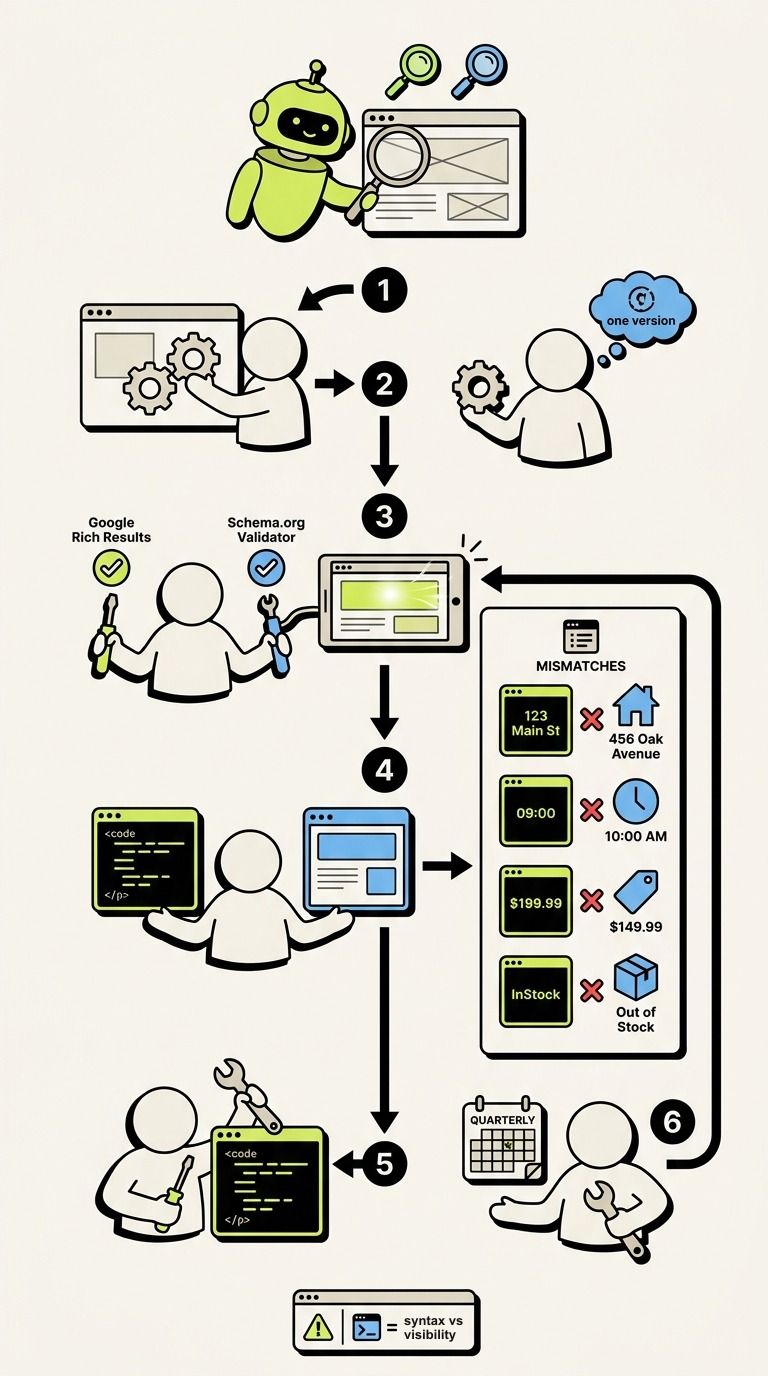
WordPress Schema Validation Workflow
After writing your Organization, LocalBusiness, or Product markup, validate the live output as your final check.
Check Existing WordPress Schema Before Adding More
Once you’ve chosen your schema types, check what WordPress already outputs. Many themes and SEO plugins add basic schema automatically. Use Google’s Rich Results Test to identify supported schema types and the Schema.org Validator to check syntax and supported properties.[1][3]
If WordPress, your theme, or a plugin already adds schema, turn off the duplicate source. Keep one version of each business fact.[1]
Test Schema and Compare It With Visible Content
After adding markup, test the live URL, rather than pasted code. Check that the output matches what visitors see on the page.[1][3]
A passing test confirms syntax. It doesn’t confirm visibility, rich results, or citations.[1][3]
JSON-LD statement Visible page information Match status Correction needed "streetAddress": "123 Main St"456 Oak Avenue Mismatch Update the street address. "opens": "09:00"Opens at 10:00 AM Mismatch Change to "10:00"."price": "199.99"$149.99 sale price Mismatch Set to "149.99"."availability": "InStock"Out of Stock Mismatch Use OutOfStock.
Fix the page first, then retest the live URL.
Update Schema When Business Details Change
Put one person in charge of business details. Have them update schema whenever those details change and review it quarterly.[1]
Recheck the live output after WordPress, plugin, or template changes. These updates can alter or remove JSON-LD script tags.[1][3]
Which Schema Should Your WordPress Site Add First?
Check your existing schema, then focus on records that match the pages your visitors use.
Start with LocalBusiness schema plugins or the most specific valid subtype if your site represents a business with a physical address or service area. Add it to the page showing your business details. Use Organization for a brand record when needed.[1][4]
Include only location details that appear on the page, including the areas you actually serve.[1][5]
Once your business identity is clear, add Product schema to boost AI SEO on individual product pages for your ecommerce inventory.[1][5]
When markup matches visible content, schema helps AI read your site more clearly. It does not guarantee crawling, indexing, rich results, or citations.[2]
FAQs
Can AI understand my website without schema?
Yes, AI can process your website without schema markup. But it has to work out meaning from your text and HTML. That can make it harder to understand your business identity, services, location, and how your pages relate to each other.
Schema markup gives AI clearer, machine-readable context. Using JSON-LD to define your business details can reduce confusion and help AI understand your content. It doesn’t guarantee AI visibility or citations.
How do I link business and product schema?
Give your business record a stable @id, then reference it from the product’s offer with "seller": {"@id": "https://example.com/#organization"}. Use brand only for the product’s actual brand, which may be a different company. This link tells AI which business sells the product. Use the Schema Markup Validator to check that the relationship parses correctly.
How can I tell if AI uses my schema?
Validate your JSON-LD with the Schema Markup Validator. Then use Google’s Rich Results Test to check whether Google detects the markup. This test doesn’t measure AI understanding.
Next, paste your JSON-LD into an AI model and ask it to explain how the entities relate to each other.
Ask the model specific questions about your business. Compare its answers with your schema and visible content. Matching answers suggest alignment, but they don’t prove the model used your schema or guarantee visibility or citations.