
I track AI referral traffic in GA4 by grouping AI sources, then checking which visits lead to leads or sales. Start with Session source / medium in Traffic acquisition and check the past 28 days for sources such as chatgpt.com and perplexity.ai.
Here’s my approach:
- Group AI visits: Save a source comparison or create a custom AI channel.
- Measure results: Check landing pages, engagement, confirmed key events, and purchase revenue - not just visit counts.
- Check WordPress data: Compare LovedByAI with GA4 using the same pages and dates.
- Review monthly: Test tracking, check redirects and consent settings, and update source rules.
The catch? AI mentions aren’t visits. Missing referrers can also hide clicks in Direct traffic. I treat these reports as measurable AI referrals, not a count of every visit influenced by AI.
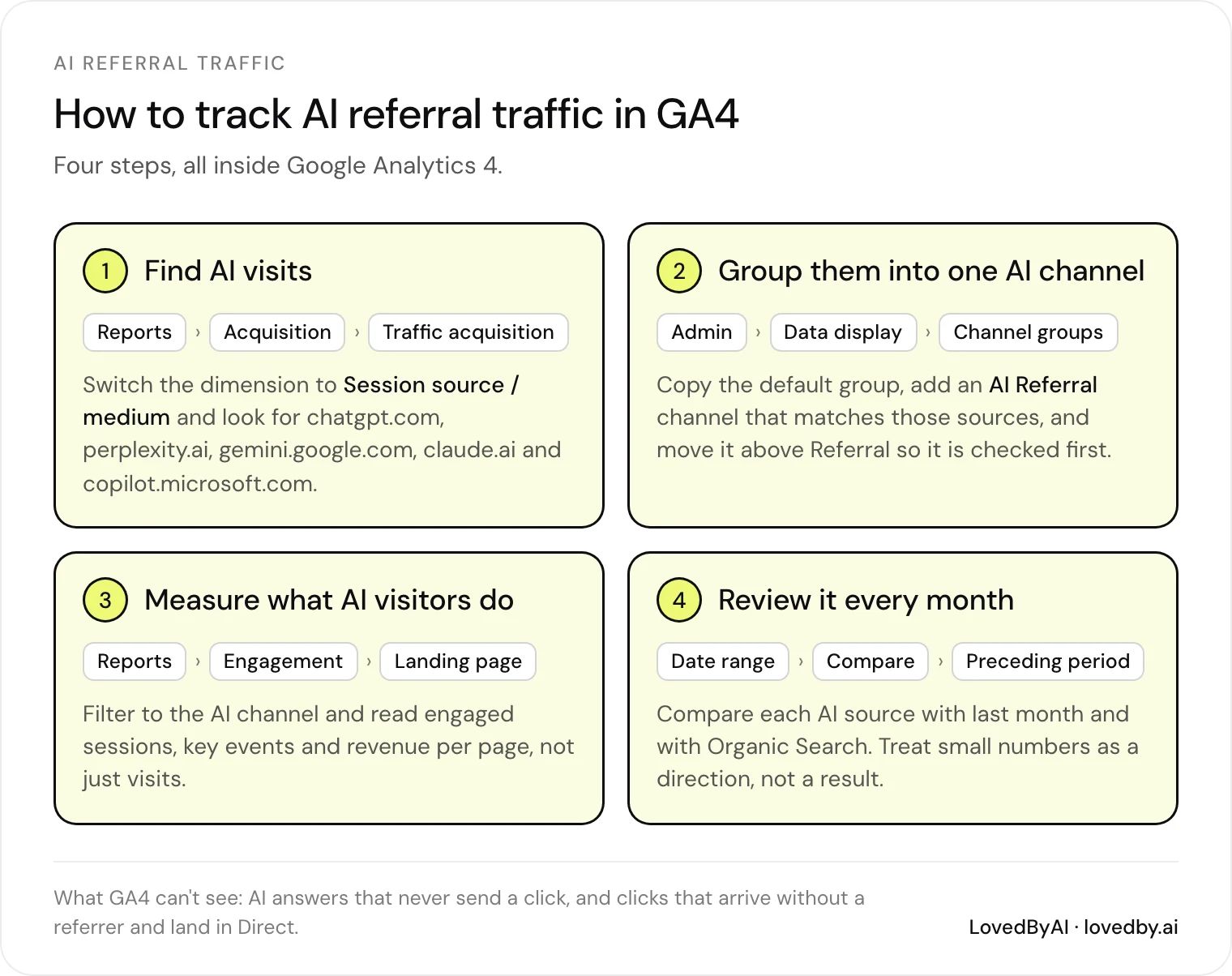
Step 1: Find and Group AI Traffic in GA4
Check AI Sources in Traffic Acquisition
Open Reports → Acquisition → Traffic acquisition and select the previous 28 days, or 90 days if traffic is sparse. Start with Session default channel group and look for AI Assistant, if available. Google defines this built-in channel using the ai-assistant medium and a recognized AI-assistant referrer.[8]
Switch the primary dimension to Session source / medium. Check for chatgpt.com, chat.openai.com, perplexity.ai, gemini.google.com, and claude.ai, then record each source and medium exactly as shown.
Don’t check only Referral. AI sources can appear under other mediums. If there’s no AI Assistant row, GA4 didn’t classify those visits into that channel.[4][6]
Use the verified source names to build a reusable AI view in the next step.
Create a Saved AI Source Comparison
Select Add comparison, choose Session source, and apply matches regex. Escape literal dots so the pattern matches the actual domain names.
Example pattern:
(chatgpt\.com|chat\.openai\.com|perplexity\.ai|gemini\.google\.com|claude\.ai)
This groups all verified AI sources into one traffic group you can report on.
Check the filtered rows before saving. If your property records a different hostname or tagged source value, adjust the pattern to match what GA4 shows.
Save the comparison or report if your permissions allow it. Otherwise, document the dimension, regex, included domains, owner, and review date. Recheck monthly to keep the saved AI view current.
Add a Custom AI Channel if Needed
If you need AI traffic in standard reports, turn your source list into a channel group. Use a custom AI channel for a stable reporting category rather than just a filtered view.[4][5][8]
| Consideration | Built-in AI Assistant channel | Custom AI channel |
|---|---|---|
| Setup effort | Low, if available | Manual setup |
| Flexibility | Google controls the definition | You control domains and naming |
Go to Admin → Data display → Channel groups. Create a new group or copy the default one, then add a channel such as AI Referral.
Set Source → matches regex to your verified pattern. Place the channel above Referral and any other broad rule that could claim those visits.
Save the group and select the custom channel-group dimension in Traffic acquisition. Compare its sessions with the source filter, then fix any mismatches in source values, regex, or rule order.[3][7][9]
Step 2: Measure Landing Pages, Engagement, and Conversions
Find Landing Pages With AI Visits
Use the AI source group from Step 1 to see where AI-referred visits start.
Open Reports → Engagement → Landing page, then add Session source / medium as a secondary dimension. This shows which entry pages receive AI-referred visits.[10][12]
For a closer look, open Explore → Free-form and use Landing page + query string and Session source / medium as row dimensions.[10] Keep query strings when their parameters matter. Watch for tracking parameters that split the same page into multiple rows.
Measure Engagement and Business Outcomes
| GA4 metric | Business question it answers |
|---|---|
| Sessions | How many AI-referred visits began on this page? |
| Engaged sessions | How many sessions met GA4’s minimum interaction criteria? |
| Engagement rate | What percentage of sessions were engaged? |
| Average engagement time per session | How long was the site in focus per session? |
| Key events | How many tracked business actions occurred? |
| Session key event rate | What percentage of sessions included at least one key event? |
| Purchase revenue | How much recorded sales revenue came from these sessions? |
Engagement doesn’t mean a completed conversion. A session qualifies as engaged if it lasts at least 10 seconds, includes at least two page or screen views, or triggers a key event.[13][14]
Track confirmed submissions, bookings, and purchases - not clicks or form starts. Send generate_lead only after a successful submission, and record each successful action once.[11]
For ecommerce sales, use purchase revenue, not Total revenue.[10][13] Confirm transaction values and currency, and check for duplicates and refunds before comparing results.
Report AI Traffic Monthly
Each month, record AI sessions, top landing pages, engagement metrics, key events by name, session key event rate, and purchase revenue.
Compare results with the previous month and with Organic Search, Paid Search, Direct, Social, and Referral traffic. Note any changes to filters, consent settings, redirects, or event tracking.
Show session counts beside rates so readers can see the sample size. Label small samples as directional, and focus on pages that produce qualified leads or sales.
Use the same monthly log format to give the WordPress attribution check in the next step a clear baseline.
Optimize your WordPress site for AI search
Find out what ChatGPT, Gemini, and Perplexity can and can't read on your site, and exactly what to fix.
Step 3: Track WordPress AI Traffic and Check Attribution
Set Up LovedByAI on WordPress
Install LovedByAI in WordPress, connect your account, and run the setup scan. Confirm that the plugin is active on your live site and reporting data.[15][17][19][20] Use the same date range and pages you checked in GA4.
Review which pages get AI visits and how those visits change over time. Keep AI visits separate from impressions. An impression doesn't guarantee a click.[15][20]
LovedByAI and GA4 may report different numbers because of counting rules, time zones, consent behavior, attribution logic, and processing schedules.[15][20] Compare the same pages and dates in both tools before changing filters.
Understand Missing Referrers and Direct Traffic
If WordPress traffic doesn't match GA4, start by checking for attribution loss. Missing referrers can leave AI visits unattributed in Direct, while incomplete source information can place them in a broader Referral category.
Copied links, privacy controls, app handling, and redirects can strip attribution. When the referrer is missing, use UTMs and make sure the tagged URL reaches the landing page. Direct traffic isn't proof of AI influence, and zero referrals don't mean zero visibility.[16]
Fix Empty or Incomplete Reports
If your WordPress dashboard looks blank or shows only partial data, check the GA4 tracking path first:
- Verify the GA4 property, web data stream, hostname, and date range. Confirm that the tag fires once on the live WordPress pages.
- Test tracking before and after consent, including reloads and redirects. Confirm test activity in Realtime or DebugView, then allow time for processing.
- Check the landing pages and key events from Step 2.[18]
- Check Session source / medium before trusting channel labels. Compare mismatches with the AI source list from Step 1 and the landing pages from Step 2 before changing filters.
- Review Referral, Direct, and Unassigned for unfamiliar sources. Add only confirmed AI sources to your filter, and document each change.
-
Check whether redirects lose tracking parameters. Review referral-exclusion or
ignore_referrersettings, too.[16][22]
New rules can't recover referral information that was never recorded.[16][22]
Track AI Traffic and Leads Using GA4
Conclusion: Keep Your AI Referral Report Up to Date
Use the same monthly log from Step 2 to keep reporting consistent. Note any Direct traffic that may come from missing referrers.[2]
Treat AI referral tracking as a recurring audit, not a one-time setup. Before each review, verify GA4 tracking. GA4’s default AI Assistant channel groups recognized AI referrers.[2] Check AI source filters and custom channel rules for overlap.
On WordPress, use LovedByAI to monitor referrals. Focus on landing pages that drive business outcomes rather than visit counts. Use analytics as your baseline, then ask new leads how they found you to catch traffic your analytics may miss.[1]
FAQs
Can I recover AI attribution for past visits?
No. You can’t recover AI attribution for past visits that weren’t tracked with specific parameters. AI platforms often strip referrer data, so those visits typically show up as Direct traffic. Once a visit is recorded without source information, you can’t reconstruct that information.
For future visits, manually add UTM parameters to links in your external content and profiles. These tags let your analytics identify the source even when referrer data is missing.
How much AI traffic is enough to spot trends?
There’s no fixed number. Compare the same pages over at least three months, show session counts next to rates, and label small samples as directional. One booking from an AI referral still counts, so track key events alongside sessions.
How do I track AI-assisted sales across visits?
Pair analytics with customer feedback. AI platforms often strip referrer data, so visits can show up as Direct traffic.
For GA4 tracking, add consistent UTM parameters to links you control, such as utm_source=chatgpt and utm_medium=ai_chat. Use custom channel groups or landing-page filters to watch for traffic spikes on service pages.
Ask every new lead how they found you. This manual check helps you track AI-driven calls and emails that analytics may miss.