Google answers more searches itself now, in an AI Overview at the top of the page or in a conversation in AI Mode. Your pages can be the source of those answers without anyone clicking through, so your usual analytics never see it happen.
Google Search Console is where Google tells you directly. It is free, it takes about ten minutes to set up, and since August 2026 it has a report just for AI.
What is Google Search Console used for?
Google Search Console is Google's free tool for website owners. It reports how your site does in Google Search: the searches it shows up for, how many impressions and clicks each page gets, which pages Google has indexed, and problems Google ran into, such as pages it can't read or errors on mobile. You can also send Google your sitemap and ask it to look at a page again after you change it. Everything comes from Google itself, not from an estimate.
What you need to sign up for Google Search Console
You need two things:
- A Google account. Use one your business keeps, not a personal address that leaves with an employee.
- A way to prove you own the site. Google calls this verification. For a Domain property, you add a DNS TXT record at your domain provider (GoDaddy, Cloudflare, Namecheap or your host). For a URL-prefix property you can upload a small HTML file, add a meta tag to your homepage, or use the Google Analytics or Tag Manager code that is already on the site.
On WordPress, Google's Site Kit plugin can do the verification for you. And if someone already owns your Search Console property, such as your agency, they can add you as a user and you skip verification altogether.
How to add your website to Google Search Console
- Go to search.google.com/search-console and sign in.
- Click Add property and choose a type. Domain covers every version of your site (with and without www, http and https, and every subdomain), so pick it if you can edit your DNS. URL prefix covers only the exact address you type.
- Follow the verification step Google shows you, then click Verify.
- Give it a few days. A new property fills in as Google collects data.
Google's own instructions are on its help page: Add a website property to Search Console.
What the Search Console generative AI report shows
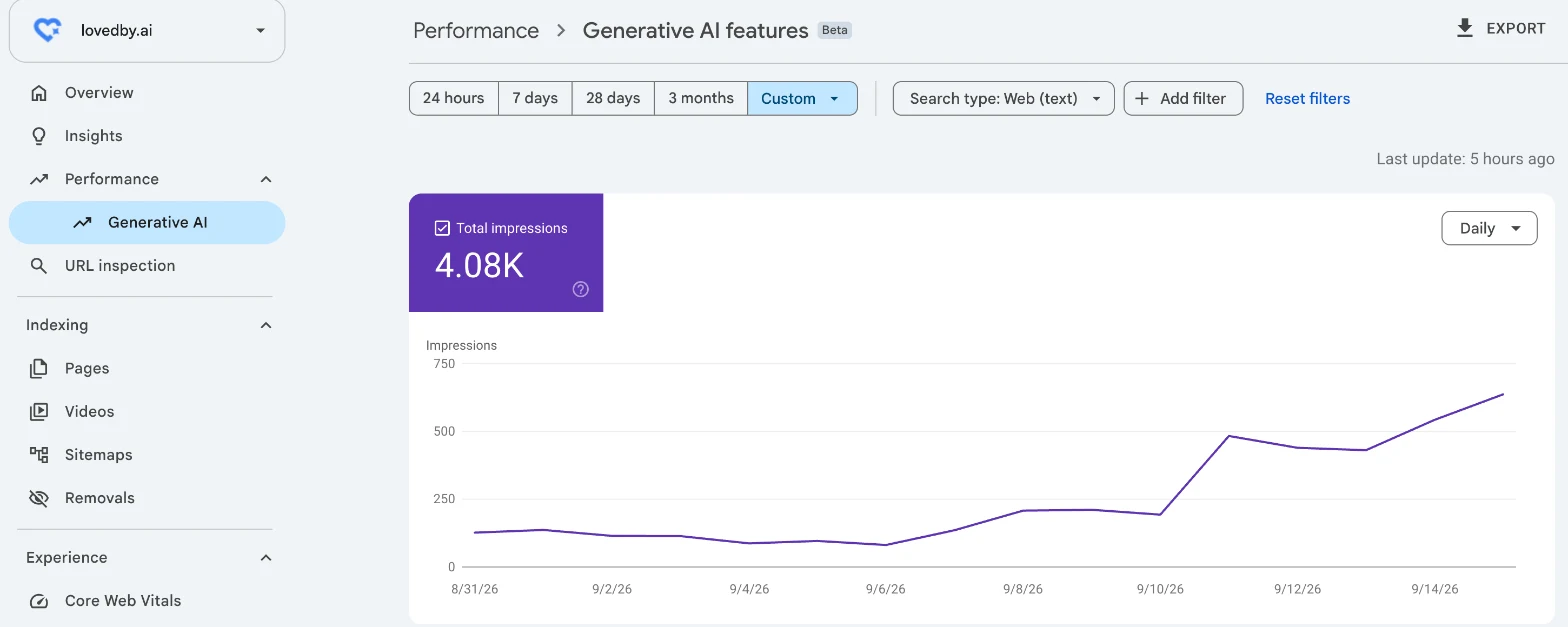
The Generative AI performance report (Search) counts how often a link to your site was shown in Google's AI features: AI Overviews, the AI summary at the top of search results, and AI Mode, Google's conversational search. Google started testing it with a small group of sites in June 2026 and rolled it out to every website on August 31, 2026.
What you can see:
- Impressions over time. A chart of how often your site appeared in AI answers, by day, week or month.
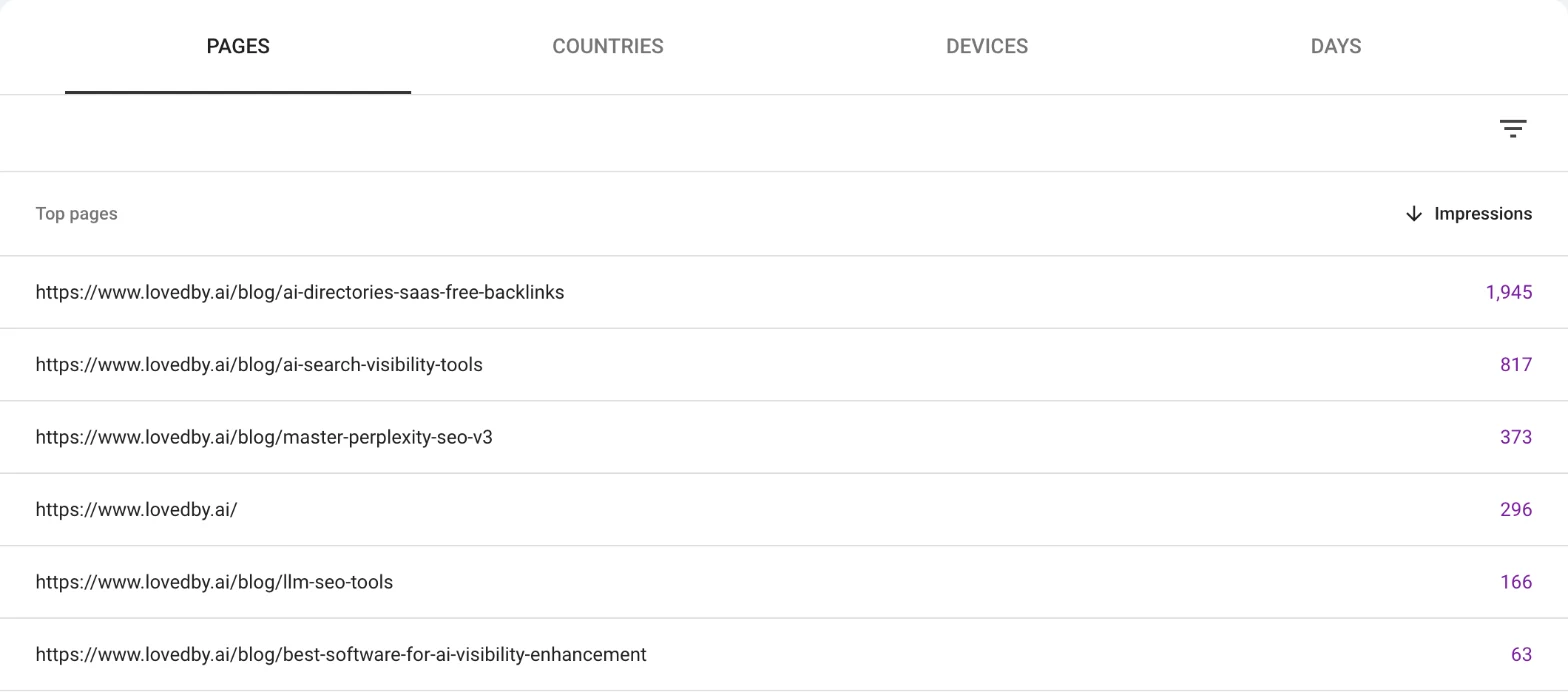
- Pages. Which of your URLs were shown, so you know which pages Google's AI uses as sources.
- Countries. Where those AI answers were shown.
- Devices. Desktop, mobile and tablet.
- Search type. Text searches separately from multimodal ones, such as a photo searched with Google Lens. The report opens on Web (text).
An impression counts each time a link to your site is shown in an AI feature. If several of your links appear in the same AI answer, the chart counts that answer once.
What it doesn't show:
- Clicks. The report counts impressions only. Clicks from AI answers are in the main Performance report, mixed in with ordinary search results.
- Queries. You can't see which question produced the AI answer. For the long, question-like searches people type into AI search, use the regex filters in how to find AI prompts in Google Search Console.
- The Gemini app. The report covers AI Overviews and AI Mode in Search. Google Discover has its own generative AI report, and Search Labs experiments are left out.
How to open the generative AI report in Google Search Console
Open your property, then Performance in the left menu, then Generative AI underneath it. The report is titled Generative AI features and marked Beta. Pick a range at the top (24 hours, 7 days, 28 days, 3 months, or more under More) and switch between daily, weekly and monthly in the chart. You can also go straight to it at search.google.com/search-console/performance/search-analytics/ai.
If it isn't there, Google says your site may not have had enough AI impressions yet, or the site is excluded from Google's AI features. The newest day is preliminary and can change within hours.
How to read your AI Overviews and AI Mode impressions
A few ways to use the report:
- Watch the trend, not the day. Set the range to the last three or six months and look at the direction of the line. One quiet day means nothing.
- Sort pages by impressions. The top pages are the ones Google's AI already trusts. Keep them accurate and current, and use them as the model for pages that don't appear yet.
- Look for the pages that are missing. If an important service or product page isn't in the list, Google's AI isn't using it. That is usually a page that doesn't answer a clear question, or one Google can't read well.
- Compare countries. If you sell in one market, check that most impressions come from there.
- Pair it with the main Performance report. The AI report tells you where you were seen. The Performance report tells you whether people clicked.
Why Search Console and your other dashboards show different AI numbers
Search Console counts what Google itself showed. Analytics tools, LovedByAI included, can only count what reaches your website: an AI crawler reading a page, or a visitor arriving from an AI answer with a referrer attached. Many AI visits arrive with no referrer at all, so every tool outside Google sees only part of the picture.
That is why we recommend setting up the platforms' own tools for your real numbers: Search Console for Google, Bing Webmaster Tools for Microsoft Copilot and Bing, and the ChatGPT Business Hub for ChatGPT. All three are free.
Screenshots: LovedByAI's own Search Console property, November 12, 2026. Sources: Google Search Central Blog, "Introducing Search Generative AI performance reports in Search Console", June 2026, updated August 31, 2026; Search Console Help, "Generative AI performance report (Search)" and "Add a website property to Search Console".